Operation
This section covers day-to-day operation of FlightRadar — every region of the screen, what each tap does, and how to interpret what you see.
Screen Layout
The 800 x 480 screen is split into two regions:
Radar scope — a 480 x 480 square on the left
Detail panel — the remaining right-hand strip (320 x 480)
The current local time and date are shown in the top-right corner, and the settings button (gear icon) sits in the bottom-right corner.
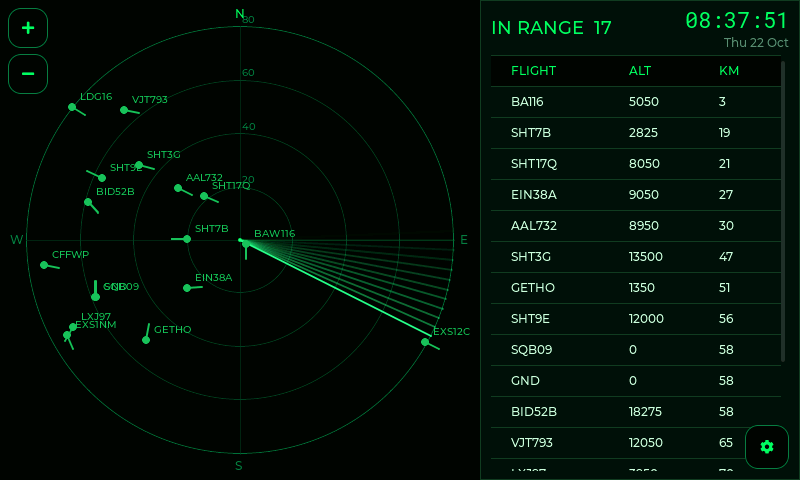
The main screen: radar scope on the left, in-range list on the right.
The Radar Scope
The scope is a top-down "military radar" view centred on your home location, with north at the top.
Scope Elements
Range rings: Four concentric rings mark equal distance steps out to the configured maximum range. Each ring is labelled with its distance in kilometres.
Compass marks:
N(top),E(right),S(bottom),W(left). North is always up. Cross-hairs run through the centre.Centre dot: A bright dot at the centre marks your home location.
Sweep line: A bright line rotates clockwise, with a fading afterglow trail behind it — the classic radar sweep. One full revolution takes the configured sweep period (default 8 seconds).
Aircraft blips: Each aircraft in range is a green dot with a short line pointing in its direction of travel and a label (callsign, or the ICAO24 hex if no callsign is known).
Zoom buttons: The + and − buttons in the top-left corner of the scope zoom in and out through the range presets (see Choosing a Range).
Reading the Blips
Distance from centre = how far the aircraft is from you. A blip near the centre is closer overhead; a blip near the outer ring is near the edge of your range.
Angle around the scope = the compass bearing to the aircraft (north up).
The short vector off each blip points the way the aircraft is heading.
Blip Colour and Brightness
Bright/near-white: The aircraft has just been passed by the sweep — a fresh contact.
Green, dimming: A known contact fading as time since the last sweep passes; it brightens again on the next sweep.
Amber: The aircraft you have selected.
Orange-red: The aircraft matches one of your flight alerts (see Configuration).
Contacts that stop being reported by the feed fade out and are removed, so aircraft that have left the area don't linger on the scope.
Selecting an Aircraft
Tap a blip to select it. The blip turns amber and the detail panel switches to show that aircraft.
Tap an empty part of the scope, or the List button at the bottom of the detail panel, to deselect and return to the in-range list.
Tip
Blips are small, so tapping is forgiving — a tap near a blip snaps to the nearest aircraft within a generous touch radius.
The Detail Panel
The right-hand panel has two modes: the in-range list (nothing selected) and the aircraft detail view (something selected).
In-Range List (Nothing Selected)
The default view. It shows:
A heading:
IN RANGE Nwhere N is the number of aircraft currently within rangeA table sorted nearest first, with columns:
FLIGHT — the flight number once it has been looked up (e.g.
BA116), otherwise the callsign (BAW116) or ICAO24 hexALT — altitude in feet
KM — distance from home in kilometres
Tap any row in the list to select that aircraft (the same as tapping its blip).
Aircraft Detail (Something Selected)
When an aircraft is selected, the panel shows its full details:
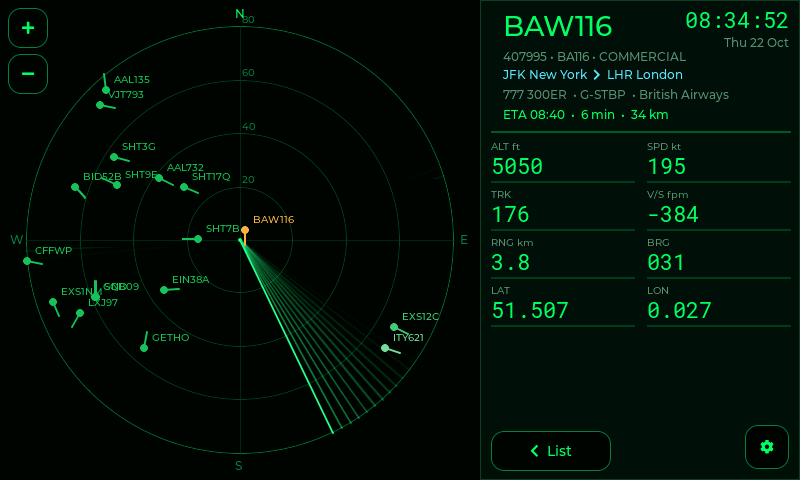
A selected aircraft: amber on the scope, full details on the right.
Callsign / flight number in large text at the top
Identity line: ICAO24 hex, flight number, and class (Commercial / General Aviation)
Aircraft line: type/model, registration and operator — e.g.
777 300ER • G-STBP • British Airways— orunknown aircraftif it can't be looked upRoute line: origin → destination — e.g.
LHR London → JFK New York— orroute unknown/no scheduled routeETA line: estimated time of arrival, minutes remaining and distance to go, when a destination and a usable ground speed are known
List button (bottom) to return to the in-range list
Stats grid of eight values:
ALT ft — altitude
SPD kt — ground speed in knots
TRK — track / heading (0–359°)
V/S fpm — vertical rate in feet per minute (climb/descent)
RNG km — range from home
BRG — bearing from home (0–359°)
LAT — latitude
LON — longitude
The core ADS-B fields (altitude, speed, heading, position) come straight from the
feed and appear immediately. The enriched fields (type, operator, route, ETA) are
looked up in the background — while they load you'll briefly see
looking up aircraft... and looking up route....
The Clock (Top-Right)
The top-right corner shows the current local time (HH:MM:SS) and date
(Mon DD Mon).
Synchronised over NTP and adjusted for your configured timezone (with automatic daylight-saving where applicable)
Long-press the clock to open the timezone picker
The Settings Menu
Tap the gear button in the bottom-right corner to open the settings menu, styled like an aircraft control-display unit. Settings are laid out in two columns; tap a row to change it, and tap <RETURN to go back to the radar.
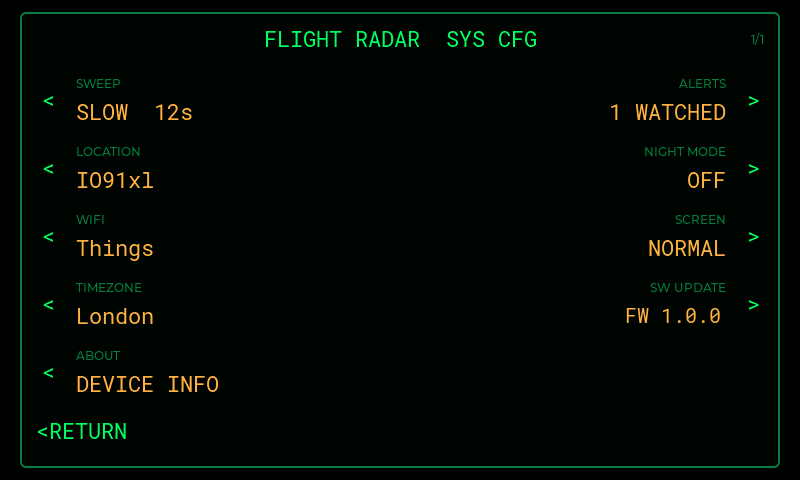
The settings menu. Each row shows its current value.
It lists:
Item |
What it does |
|---|---|
SWEEP |
Each tap cycles the sweep: Off, Fast (5 s), Normal (8 s), Slow (12 s) |
LOCATION |
Set your home location by Maidenhead grid or latitude/longitude |
WIFI |
View and manage saved WiFi networks (up to 3) |
TIMEZONE |
Pick your local timezone from ~18 worldwide zones |
ALERTS |
Manage the flight watch-list (callsign / ICAO / flight-number prefixes) |
NIGHT MODE |
Schedule the screen to switch off overnight |
SCREEN |
Each tap toggles between normal and 180°-flipped orientation |
SW UPDATE |
Shows the current firmware version; tap to check for an update now |
ABOUT |
Firmware version, Device ID (MAC), WiFi network, IP address, signal and home location |
Each of these is covered in detail in Configuration.
Normal Operation Sequence
Power-On
Display up (~1–2 s): scope and panel drawn, settings loaded
WiFi connect (5–30 s): joins the best saved network in range
NTP sync (1–3 s): the clock populates with local time
Feed polling: the device begins fetching aircraft near home (about every 15 s)
Update check: an OTA check runs ~30 s after WiFi comes up, then hourly
If no WiFi is configured, the on-screen WiFi setup takes over instead — see Getting Started.
Steady State
The clock ticks every second
Aircraft positions refresh roughly every 15 seconds; blips update in place
The sweep rotates continuously (unless turned off)
Selecting an aircraft triggers its type/route lookup in the background
Auto-Recovery
WiFi drop: the device retries automatically and resumes when the network returns
Feed hiccup: contacts are kept briefly and the poll retries; a prolonged, healthy network dry spell simply keeps retrying, while a genuinely stuck secure connection is recovered by an automatic restart
Tips for Daily Use
Choosing a Range
Under an airport / flight path: a short range (5–20 km) fills the scope with the aircraft nearest you
Wide-area watching: a longer range (80–250 km) shows distant traffic but packs blips near the centre
Use the + / − buttons at the top-left of the scope to change the range; the ring labels update to match (see Configuration)
Placement
Keep the device on a desk, shelf or windowsill within good 2.4 GHz WiFi range
Avoid direct sunlight, which washes out the LCD
Use 180° rotation (Settings → SCREEN) if you mount it with the USB-C socket at the top
Power
FlightRadar can run 24/7 on USB-C
Use a quality 5 V supply rated 1 A or more
Works from a USB-C power bank for portable use
Use Night Mode to switch the screen off overnight and save power/wear
What's Next?
Adjust every setting in Configuration
Firmware updates and networking detail: Advanced Features
If something isn't working: Troubleshooting