Configuration
This section documents every configurable setting on FlightRadar. Almost everything is set on the touchscreen; the only thing the web page does is initial WiFi setup.
Where Settings Live
On-screen settings menu — the primary way to configure the device. There is no "configuration mode": the settings menu is always available and changes apply immediately.
Web setup page — only used to enter WiFi credentials when the device is in access-point setup mode (see Getting Started).
Compile-time defaults — the factory defaults below live in the firmware; the live values are stored in non-volatile storage (NVS) and survive reboots and firmware updates.
Device Information
Device ID (MAC Address)
Every FlightRadar has a unique Device ID, which is its WiFi MAC address.
- Type:
Read-only
- Format:
XX:XX:XX:XX:XX:XX(hexadecimal)- Example:
A4:CF:12:34:56:78
It appears in Settings → ABOUT.
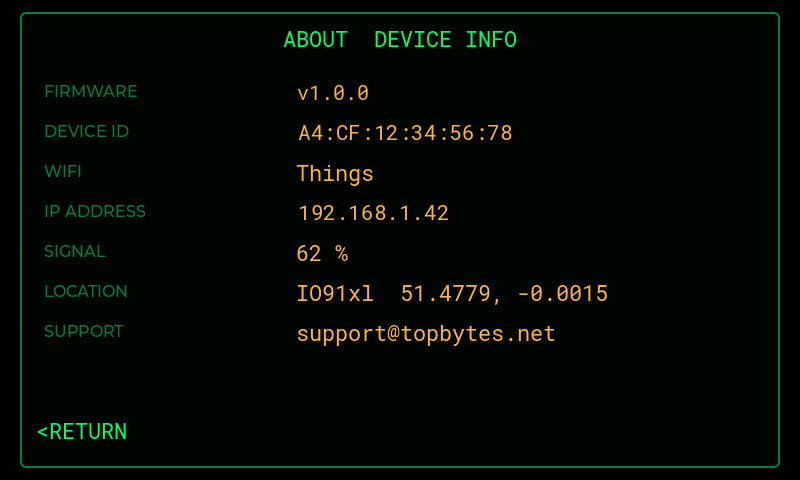
Settings → ABOUT (example Device ID and IP address shown).
The About page also shows the WiFi network, IP address and signal strength, your home location and the support email address. The TopBytes update service uses the Device ID to identify your unit for firmware updates. Have it ready if you contact support.
Firmware Version
The current firmware version is shown in Settings → ABOUT and in Settings → SW UPDATE. It is also sent to the update service on every check.
Home Location
The radar scope is centred on your home location. Set it in Settings → LOCATION.
- Configurable via:
Settings → LOCATION (Maidenhead grid or latitude/longitude)
- Default:
51.4779, -0.0015(near London)
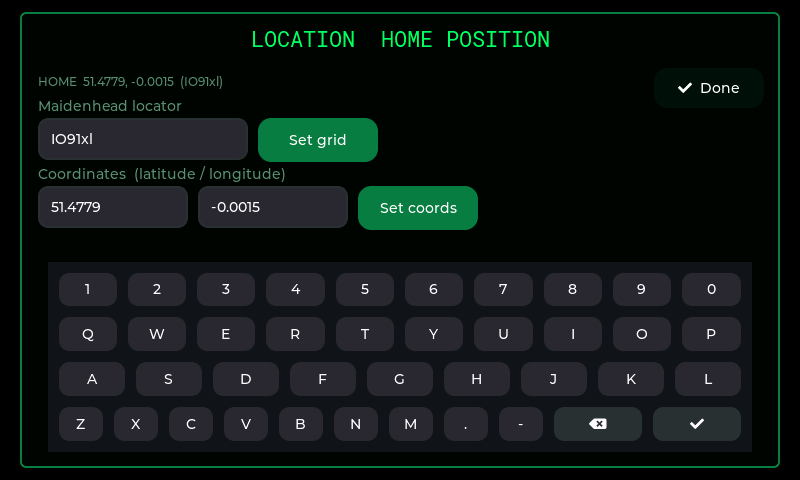
Settings → LOCATION. Tap Done when finished.
Maidenhead Locator
Type a 4-, 6- or 8-character grid square (e.g. IO91wm) and tap Set grid.
Input is case-insensitive and displayed in canonical form. A 6-character grid resolves
to roughly 2 km, which is more than accurate enough for a radar whose rings are
kilometres apart.
Latitude / Longitude
Type your latitude (−90…90) and longitude (−180…180) in decimal degrees and tap Set coords.
Note
Invalid input is rejected with an error (Invalid grid (e.g. IO91wm) or
Lat -90..90, Lon -180..180) and your previous location is kept. When you set a
valid location the scope re-centres immediately and the value is saved.
Note
FlightRadar has no GPS receiver. Location is set manually by grid or coordinates.
Range / Zoom
The outer ring marks the maximum range — the "overhead" cutoff. Aircraft beyond it are not shown.
- Configurable via:
the + (zoom in) and − (zoom out) buttons at the top-left of the scope
- Default:
40km- Presets:
5, 10, 20, 40, 80, 160, 250 km
Each tap steps to the next preset. The ring labels update to match, and the range is saved, so it survives a restart.
Lower ranges zoom in on the traffic closest to you; higher ranges show a wider area but crowd distant blips toward the centre.
Sweep
The rotating radar sweep is configurable in Settings → SWEEP. Each tap on the row cycles through the options:
Option |
Meaning |
|---|---|
OFF |
No sweep line (blips still update) |
FAST 5s |
One revolution every 5 seconds |
NORMAL 8s |
One revolution every 8 seconds (default) |
SLOW 12s |
One revolution every 12 seconds |
A slower sweep looks smoother and gives a longer afterglow trail; a faster sweep refreshes each blip's brightness more often.
Brightness
- Default:
90%
FlightRadar detects the backlight type automatically at boot:
Dimmable hardware is driven with PWM at the default brightness.
On/off-only hardware simply switches the backlight on.
Note
This release has no on-screen brightness control. Use Night Mode to turn the screen off overnight.
Screen Rotation
- Configurable via:
Settings → SCREEN (each tap toggles)
- Options:
NORMALor180 FLIP- Default:
NORMAL
Flips both the display and the touch input by 180°, for mounting the device upside-down (for example, hanging from a shelf with the USB-C socket at the top). Taps stay aligned with what's on screen.
Night Mode (Overnight Screen-Off)
- Configurable via:
Settings → NIGHT MODE
- Default:
Disabled; window 23:00 → 07:00
When enabled, the screen backlight turns off between the start and end times you set (in local time). Touching the screen wakes it for about 5 minutes, then it returns to off.
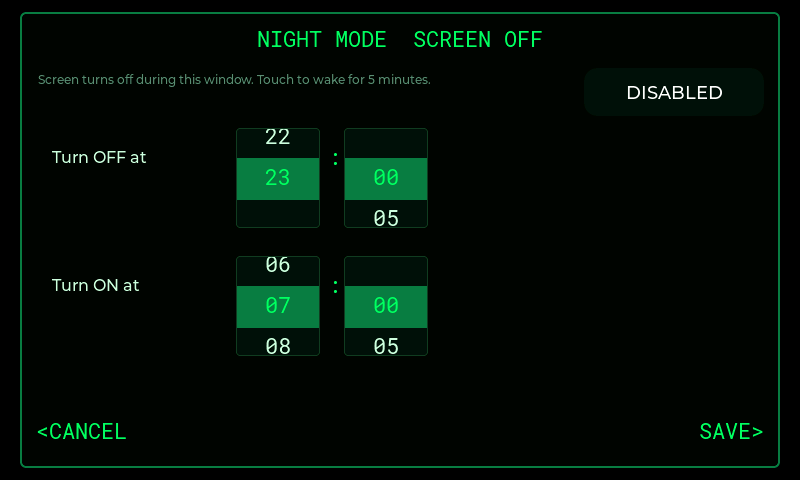
Settings → NIGHT MODE.
Tap the ENABLED / DISABLED button to switch the schedule on or off.
Scroll the Turn OFF at and Turn ON at rollers to set the hour and minute (minutes move in 5-minute steps).
Tap SAVE> to keep the changes, or <CANCEL to discard them.
Timezone
- Configurable via:
Settings → TIMEZONE (or long-press the clock)
- Default:
UTC
The timezone controls the clock in the top-right corner. Scroll the list to your zone and tap SET> (or <CANCEL to keep the current one). The change applies immediately (no reboot) and daylight-saving is handled automatically where the zone uses it.
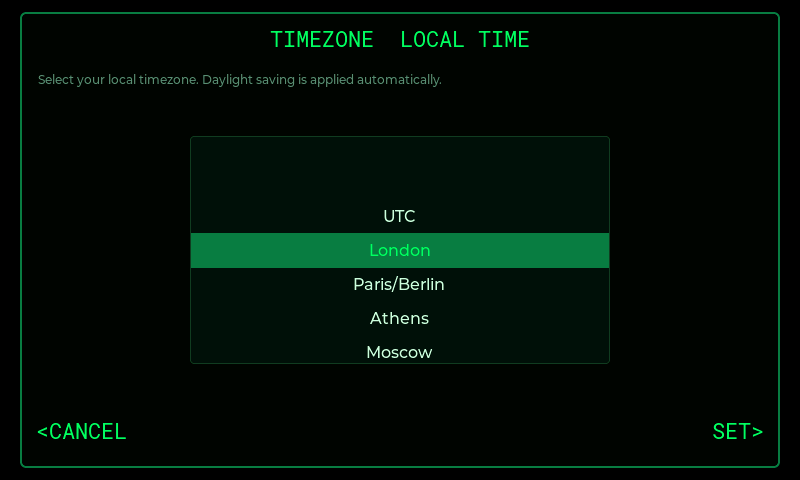
Settings → TIMEZONE.
Available timezones:
Timezone |
Notes |
|---|---|
UTC |
Coordinated Universal Time (default) |
London |
UK, with daylight saving |
Paris / Berlin |
Central European Time, with daylight saving |
Athens |
Eastern European Time, with daylight saving |
Moscow |
Moscow Time (no daylight saving) |
Dubai |
Gulf Standard Time (no daylight saving) |
Mumbai |
India Standard Time (no daylight saving) |
Bangkok |
Indochina Time (no daylight saving) |
Singapore |
Singapore Time (no daylight saving) |
Tokyo |
Japan Standard Time (no daylight saving) |
Sydney |
Australian Eastern Time, with daylight saving |
Auckland |
New Zealand Time, with daylight saving |
New York |
US Eastern Time, with daylight saving |
Chicago |
US Central Time, with daylight saving |
Denver |
US Mountain Time, with daylight saving |
Los Angeles |
US Pacific Time, with daylight saving |
Honolulu |
Hawaii Time (no daylight saving) |
Sao Paulo |
Brasília Time (no daylight saving) |
WiFi Networks
- Configurable via:
Settings → WIFI, the on-screen WiFi setup, or the AP web page
- Maximum stored networks:
3
FlightRadar stores up to 3 WiFi networks. On boot it scans and connects to the best saved network in range. The most recently added network becomes the highest priority.
Add a network — via the on-screen WiFi setup (scan + touch keyboard) or the access-point web page (see Getting Started)
View / remove networks — in Settings → WIFI, where the currently-connected network is marked
current; tap the red bin button to remove one, or Add network to scan for another
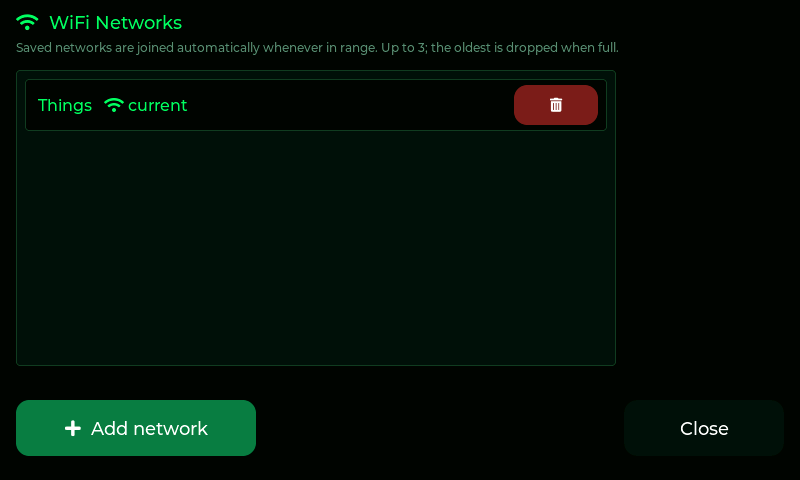
Settings → WIFI.
Passwords are stored in NVS and never shown back on screen
Note
Only 2.4 GHz networks are supported. 5 GHz networks will not appear in the scan and cannot be joined.
Flight Alerts
FlightRadar can highlight aircraft that match a watch-list of prefixes.
- Configurable via:
Settings → ALERTS
- Maximum entries:
6
How Matching Works
Each alert entry is matched case-insensitively as a prefix against an aircraft's callsign, ICAO24 hex, or (once looked up) its IATA flight number. So:
Alert entry |
Aircraft |
Match? |
|---|---|---|
|
|
Yes (callsign prefix) |
|
|
Yes (callsign prefix) |
|
flight |
Yes (flight-number prefix) |
|
|
No (different prefix) |
Managing Alerts
In Settings → ALERTS:
Type a callsign / ICAO / flight-number prefix (e.g.
BAW,VIR,BA109) and tap Add watchExisting entries are listed under WATCHING, each with a delete button
If the list is empty, the panel shows
No alerts. Add a prefix to watch for.Tap Done to close the page
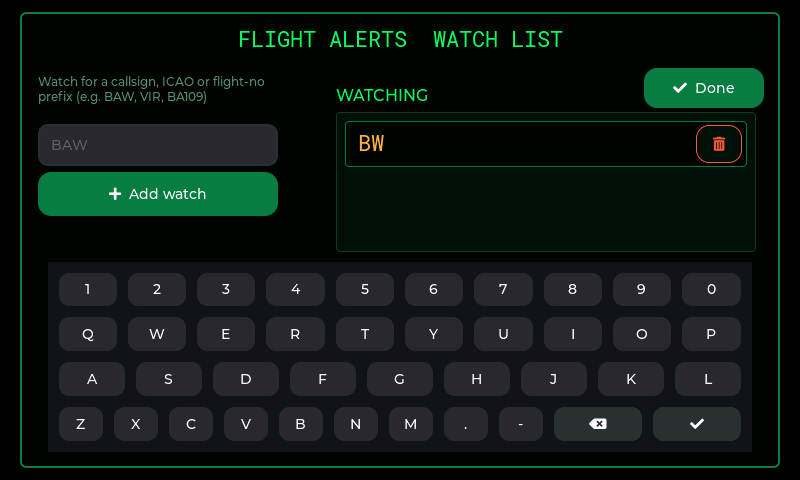
Settings → ALERTS.
What an Alert Looks Like
Aircraft matching any alert entry are drawn in orange-red on the scope, so they stand out from ordinary green contacts. Select one to see its full details.
Tip
Use a broad prefix (e.g. an airline's ICAO prefix like BAW) to catch every flight
from that operator, or a full flight number to watch one specific service. Avoid
single letters, which would match almost everything.
Factory Reset
FlightRadar does not currently expose a one-tap factory reset in the on-screen menu.
To remove a WiFi network, delete it individually in Settings → WIFI.
A full erase of all saved settings requires re-flashing / erasing the device over USB from a computer and is intended for service use. Contact support@topbytes.net if you need to fully reset a unit.
What's Next?
Daily operation and reading the screen: Operation
Firmware updates and networking detail: Advanced Features
Solving problems: Troubleshooting