Getting Started
This section walks you through the first-time setup of your FlightRadar. The whole process happens on the touchscreen — no laptop or phone is required, though a phone can be used for the access-point fallback if you prefer.
Unboxing and First Power-On
What's in the Box
Your FlightRadar package should contain:
FlightRadar device
USB-C power cable
Initial Power-Up
Connect the USB-C cable to the FlightRadar's USB-C port
Connect the other end to a USB power source (5 V wall adapter, computer, or a quality power bank)
The 7-inch LCD lights up and the radar scope appears
Note
Use a quality 5 V USB-C power supply rated at 1 A or more. Insufficient power may cause boot loops or display instability.
First Boot Sequence
When FlightRadar powers on for the first time (with no WiFi saved), the following happens:
Display comes up: The radar scope and detail panel are drawn.
Configuration check: The device looks for saved WiFi credentials in non-volatile storage.
WiFi setup takes over: Because no network is configured, the device starts its own setup access point and shows the on-screen WiFi Setup panel.
The On-Screen WiFi Setup
When no WiFi is configured, a full-screen WiFi Setup panel appears with two ways to get online:
WiFi Setup

No WiFi configured.

Option A  -  Join the hotspot "FlightRadar Setup" from a phone/laptop,
then open a browser to set up WiFi.

Option B  -  Scan for a network here on the screen:

[ Scan for networks ]
Most people use Option B and do everything on the screen.
Option B — Set Up WiFi on the Screen
Tap "Scan for networks"
The device scans for nearby 2.4 GHz networks and shows a Select network list. Each row shows the network name, a WiFi icon, and a keyboard icon if the network needs a password. The status line shows how many were found (e.g.
6 found,none found, orscan failed - tap Rescan). Scroll the list to see more.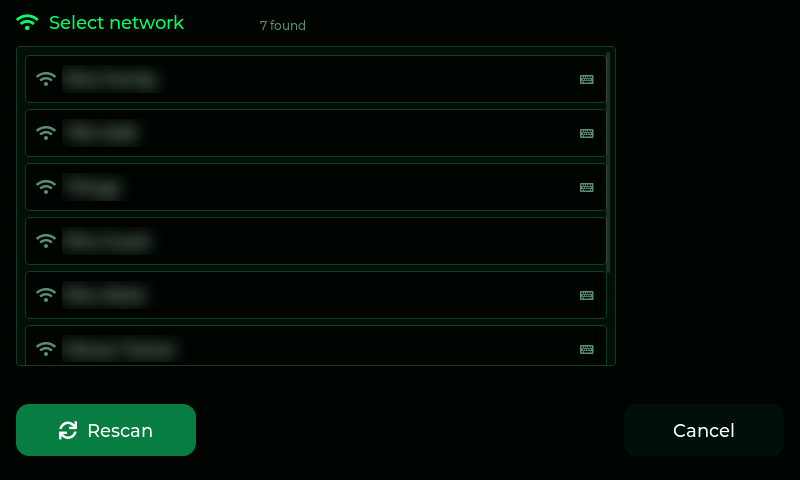
The scan list (network names blurred here).
Note
FlightRadar does not support 5 GHz networks. Make sure your router has 2.4 GHz enabled.
Tap your network
Tap the name of your home or office WiFi. If your network is hidden, tap Other (enter manually) to type the name yourself.
Enter the details
A setup panel opens with:
Network name (SSID) — pre-filled if you picked it from the scan
Password — tap the field and type your WiFi password on the on-screen keyboard
Add network button to save
Cancel button to back out
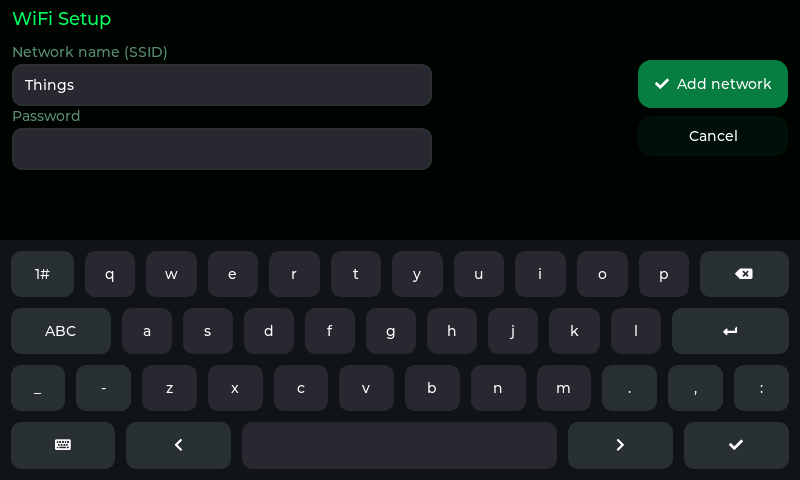
Entering the password for a network picked from the scan.
Tap "Add network"
The network is saved and the device begins connecting. Once connected, the WiFi setup panel closes and the radar begins fetching aircraft.
Option A — Set Up WiFi From a Phone or Laptop
If you'd rather type on a real keyboard, use the access-point fallback:
On your phone or laptop, open WiFi settings and join the open network named
FlightRadar Setup.A configuration page should open automatically (captive portal). If it doesn't, open a browser and go to
http://192.168.4.1.Enter your WiFi network name and password in the form and submit.
The page confirms:
Saved. FlightRadar is connecting to your network. This hotspot will close.
The device joins your network and the setup hotspot shuts down.
Note
On some phones you may see a warning that "this network has no internet access."
That's expected — the FlightRadar Setup hotspot exists only for configuration.
After WiFi Connects
Once FlightRadar is online it automatically:
Synchronises its clock over NTP (
pool.ntp.org/time.google.com)Begins polling the adsb.fi network for aircraft near your home location
Checks the TopBytes update service for newer firmware (about 30 seconds after WiFi comes up)
Within a few seconds, aircraft near your home location start appearing as blips on the scope.
Setting Your Home Location
The scope is centred on your home location. Out of the box this is a default near London; set your own so the ranges and bearings are correct.
Tap the gear button (bottom-right) to open the settings menu, then tap LOCATION.
The location panel shows your current home, e.g.
HOME 51.4779, -0.0015 (IO91xl).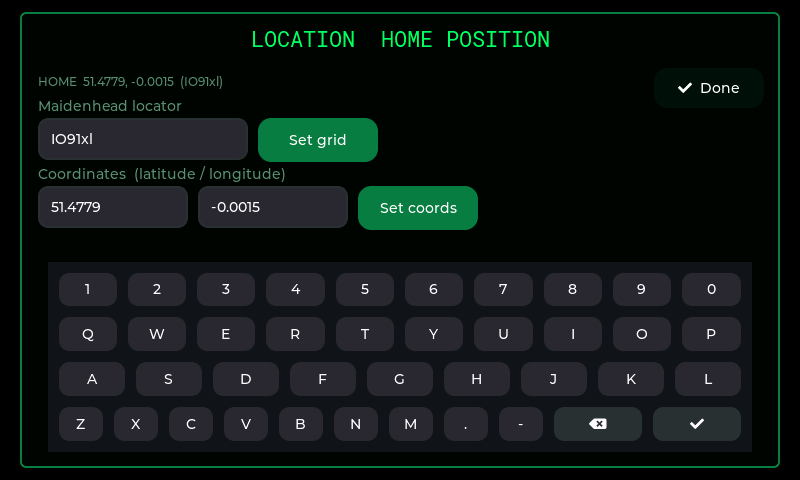
The Location page.
Set it one of two ways:
Maidenhead locator — type a 4-, 6- or 8-character grid square (e.g.
IO91wm) and tap Set grid. This is the quickest method and is accurate to about 2 km at 6 characters.Coordinates — type your latitude (−90…90) and longitude (−180…180) in decimal degrees and tap Set coords.
The scope re-centres immediately on the new location and the setting is saved. Tap Done to close the page.
Tip
You can find your Maidenhead grid square from your latitude/longitude using any online "grid square locator" tool, or read it off a GPS app.
Note
If you enter an invalid grid or out-of-range coordinates, the panel shows an error
(Invalid grid (e.g. IO91wm) or Lat -90..90, Lon -180..180) and keeps your
previous location.
Verifying Successful Setup
You'll know setup was successful when:
The clock in the top-right shows the correct local time
The radar scope shows range rings, a rotating sweep, and (if there's traffic overhead) green aircraft blips
Tapping a blip opens a detail panel that fills in with altitude, speed, heading and — after a moment — the aircraft type and route
If the scope stays empty, first check that aircraft are actually within your configured range (try increasing the range, or during quiet periods simply wait), then see Troubleshooting.
Serial Monitor Messages
If you connect FlightRadar to a computer via USB-C, you can watch the boot process on a serial terminal at 115200 baud:
FlightRadar 1.0.0 booting...
[net] scanning...
[net] connecting to 'MyHomeWiFi'
[net] online: MyHomeWiFi ip=192.168.1.42 rssi=-60
[feed] home = 51.4779, -0.0015  (grid IO91xl, range 40 km)
[feed] adsb.fi: 24 aircraft  (int_largest=56308)
[clock] NTP synced
Note
The serial port is mainly for status logging. It also accepts a few service
commands (type help), which support may ask you to run, but all
configuration is done on the touchscreen.
What's Next?
Now your FlightRadar is set up and running, you can:
Learn to read every part of the screen in Operation
Adjust range, sweep, brightness, night mode, timezone, rotation and alerts in Configuration
Explore firmware updates and networking detail in Advanced Features
If something isn't working, jump to Troubleshooting